Friday, September 6, 2013

How to call Server Side Method from jQuery/javascript using Ajax & JSON Parsing

With this post I would show how to call server side method from client side. Here I use jQuery to utilize the Ajax Capabilities which will help us to get/post data to/from server Asynchronously. There are many methods available to perform an async callback to the server. Here I will show a simple example as in how to call a code behind Webmethod.
For simplicity I would be calling the code behind method on a Button Click. Here is the code:

<asp:Button ID="Button1" runat="server" Text="Click" />
<br /><br />
<div id="myDiv"></div>

JQuery/JavaScript Code to call Server Side Method:

<script src="http://ajax.googleapis.com/ajax/libs/jquery/1.3/jquery.min.js" type="text/javascript"></script>
<script type ="text/javascript">
$(document).ready(function () {
$('#<%=Button1.ClientID %>').click(function () {
$.ajax({
type: "POST",
url: "WebForm1.aspx/ServerSideMethod",
data: "{}",
contentType: "application/json; charset=utf-8",
dataType: "json",
async: true,
cache: false,
success: function (msg) {
$('#myDiv').text(msg.d);
}
})
return false;
});
});
</script>

Server Side Method (C# Code): (you must have to define your web method as public static)

[WebMethod]
public static string ServerSideMethod()
{
return "Message from server.";
}

In the above code, the aspx markup contains a button on click of which we would call the server side method named ServerSideMethod(). The div would show the message returned from the server. When you run the code above and click the button, it would the div would show the message "Message from server".
If you want to send parameters to your server side method / code behind method, you would replace the below line in the above jQuery code as:

data: "{'param1': 1}"    (Static Value)
data: "{'param1':"+ variableValue +"}" (If you want to pass Variable value

With the above line I would be sending a parameter with value as 1 to the server side method.
The server side method would change as:

[WebMethod]
public static string ServerSideMethod(string param1)
{
return "Message from server with parameter:"+param1;
}

You can also call your web service method from here URL attribute.
If you want to call your Web Method on confirmation box of Jquery then you can go with below code:

function MyConfirmMethod() {
if (confirm('Are your sure?')) {
$.ajax({
type: "POST",
url: "WebForm1.aspx/ServerSideMethod",
data: "{}",
contentType: "application/json; charset=utf-8",
dataType: "json",
success: function (msg) {
$('#myDiv').text(msg.d);
}
});
return false;
}
else {
return false;
}
}

Server Side C# Method:

protected void Page_Load(object sender, EventArgs e)
{
Button1.Attributes.Add("onclick", "return MyConfirmMethod();");
}
[WebMethod]
public static string ServerSideMethod()
{
return "Message from server!";
}

Above you can see I am calling JavaScript confirm on the button click. On pressing yes, jQuery calls code behind method ServerSideMethod and returns back the message. You could perform any server side logic/database operations here based on the user response. Note I use return false as it prevents post-back to the server.

Thanks..:)
Tuesday, August 27, 2013

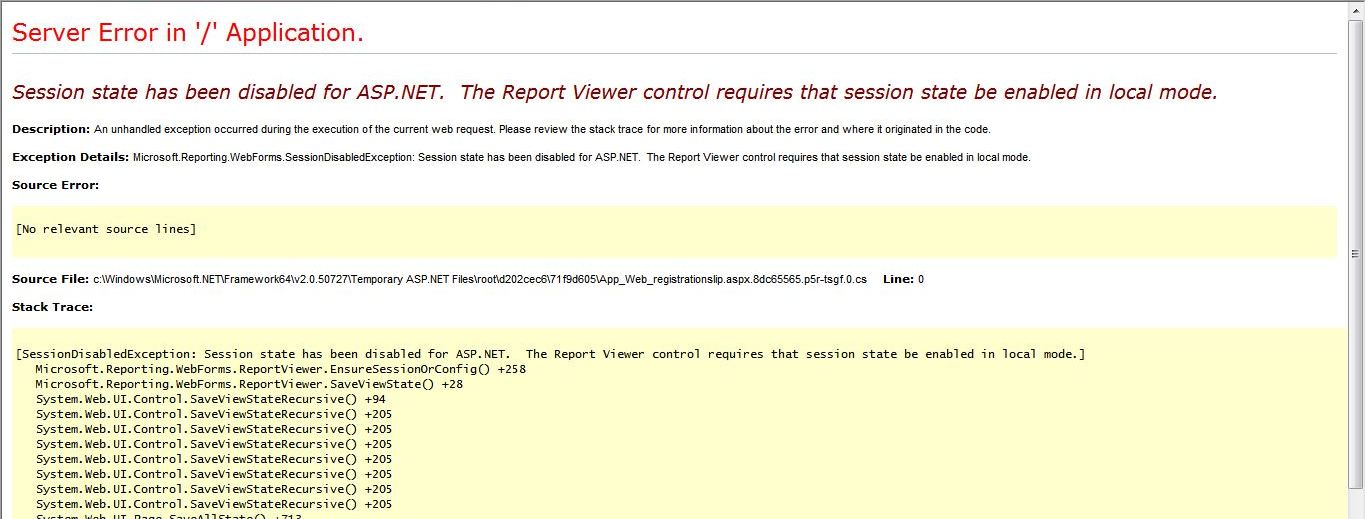
Session state has been disabled for ASP.NET. The Report Viewer control requires that session state be enabled in local mode

Solution for following error:Image

I had to install SharePoint Foundation 2010 for a new project. They needed a native Web Part, and the name of this was Report Viewer control

But a received a strange correlation-ID error and I could not open anymore my site. so I opened ULSVIEWER and got a stranger error: Session state has been disabled for ASP.NET. The Report Viewer control requires that session state be enabled in local mode

So I made some researches on internet and found always the same PowerShell Command:

Enable-SPSessionStateService ( "The only way to install ASP.Net Session State is through PowerShell using *-SPSessionStateService. [Enable | Disable | Get | Set]-SPSessionStateService" )

Reference:

Reference-1  Reference-2   Reference-3

The problem is that when I followed the directions for enabling session state using powershell, I could not find the cmdlet. I spent a ridiculous amount of time trying to figure this out since I had the correct powershell snapin, but I could not find that cmdlet.


To resolve this issue you need to change at 2 places.

     1. Do Following changes in your sharepoint web.config file

  • You need to edit the web.config file of the SharePoint application. Open your web.config and add the httpModules.

  • In the <system.web> section, find the <httpModules> element and edit it like the following:

  • <httpModules> <add name = “Session” type=”System.Web.SessionState.SessionStateModule” /></httpModules>

  • You also need to find the element tag <pages> (also under the <system.web> element) and look for the attribute called enableSessionState and set it to true if it is currently false. Save and close the web.config file.


     2. Now another thing is you need to add modules in IIS7

  • You should then open the IIS 7 manager, and select your web application.

  • Open the modules applet under the IIS section.

  • Click “Add Managed Module” in the right hand panel.Enter a name for the module, I chose “SessionState”, you can pick what you like, but I suggest something related to session state and then in the lower box, select the entry for:

  • System.Web.SessionState.SessionStateModule, System.Web, Version=2.0.0.0, Culture=neutral, PublicKeyToken=b03f5f7f11d50a3a

Made an IISreset, and test again. you can now add your WebPart Report Viewer control to your site.

Monday, July 8, 2013

How to send requrest after executing Response.End() statement

Once I have to create a custom search on list item for some of the item fields and then it can be exported to excel. I successfully developed a custom visual web part which display only those record which fulfilling the search criteria and is transferred to excel. But then i face one problem that first time when i search the record and export it to excel it works fine. But for the second time my request is not sent to server because of using Response.End() function to avail the user to download the exported record in excel file.


So following is the solution for the same. Add below JavaScript in  your web part design page.


<script type="text/javascript">
document.ready({
        _spOriginalFormAction = document.forms[0].action;_spSuppressFormOnSubmitWrapper = true;
});
</script>

and append following code in your page load event.


System.Web.UI.ScriptManager scriptManager = System.Web.UI.ScriptManager.GetCurrent(this.Page);
scriptManager.RegisterPostBackControl(this.btnToExport);

Please replace this.btnToExport with your button or your control on which you handle click event to export it to excel.


Monday, July 1, 2013

How to decrease Content DB Size

If your content DB size is more than its actual size then you have to remove items from your Recycle Bin.

Once you remove your item from Site Action -> Recycle Bin it will transffered to Admin Recycle bin. You have to remove it from there also.

http://yoursite/_layouts/AdminRecycleBin.aspx?View=2

Once you removed your data from here now see the size of your content db. Its reduced now.

Thanks.

Friday, June 28, 2013

How to Display SharePoint Control in Display Mode in List Edit Page

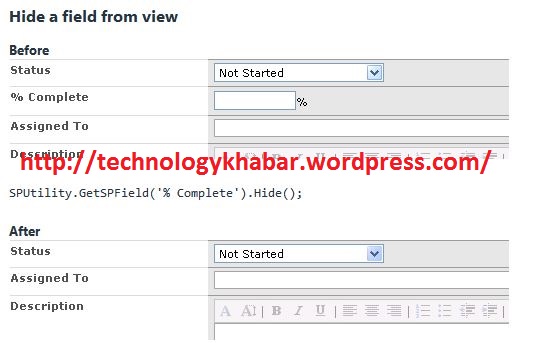
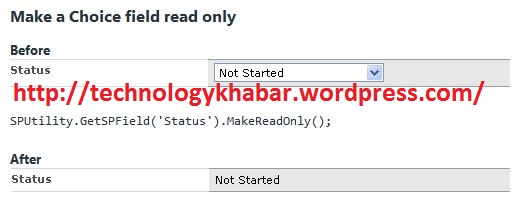
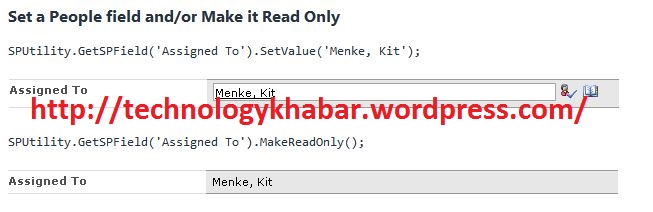
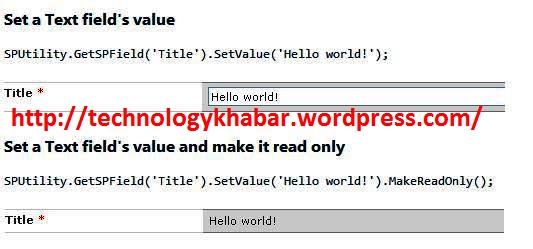
I am facing the problem in which I need to display the SharePoint List Field in "Display" mode in List Edit Page. (This Problem works with SharePoint Default generated Page)

Step-1 : First of all please download the JavaScript file from here.

Step-2 : Add this JavaScript file in your project StyleLibrary.

Step-3 : Now Open your List Default Edit Page.

Step-4 : Find PlaceHolderMain tag. and after this tag insert you desired code as below:
<script type=text/javascript>
function MyCustomExecuteFunction()
{
//to hide the field Title=Field Display Name
     SPUtility.GetSPField('Title').Hide();
//enable to control in display mode
SPUtility.GetSPField()
   
}
_spBodyOnLoadFunctionNames.push("MyCustomExecuteFunction");
</script>

Other examples images are inserted below:

Image

Image

Image

Image

If you have any doubt in this article feel free to mail me or comment here.

Wednesday, June 19, 2013

Custom Code for send Mail in SharePoint using C# .net code

Create new project in Visural Studio create new Project by following the below step:

File -> New -> Project -> Visual C# -> Windows in Installed Template -> Select Console Application. Give your desire name to the application.

Add Following Reference in your code:
Microsoft.SharePoint

Add Following Name Space in you code:
using Microsoft.SharePoint;
using System.Net.Mail;

Replace Program.cs code with below code:
using System;
using System.Collections.Generic;
using System.Linq;
using System.Text;
using System.Net.Mail;
using Microsoft.SharePoint.Administration;
namespace SendEmail
{
    class Program
    {
        static void Main(string[] args)
        {
            SPWebApplication webApp = SPWebApplication.Lookup(new Uri("https://serverName/"));
            MailMessage mail = new MailMessage();
            mail.From = new MailAddress("abc@xyz.com");
            mail.To.Add("pqr@xyz.com");
            mail.Subject = "Subject Test";
            mail.Body = "Body Test";
            // SmtpClient class sends the email by using the specified SMTP server
            SmtpClient smtp = new SmtpClient(webApp.OutboundMailServiceInstance.Server.Address);
            smtp.UseDefaultCredentials = true;
            smtp.Send(mail);
        }
    }
}

This will send mail from abc@xyz.com to pqr@xyz.com user. Subject of the mail is "Subject Test" and Body of the mail is "Body Test"

How to check current user in particular group in JavaScript using SPServices

Add two JavaScript file in your Style Library.

1. Javascript 1.7.1.js (Download from here)

2. jquery.SPServices-0.7.1a.min.js (Download from here)
<script type="text/javascript" src="/Style%20Library/js/jquery-1.7.1.min.js"></script>
<script type="text/javascript" src="/Style%20Library/js/jquery.SPServices-0.7.1a.min.js"></script>
<script language="javascript" type="text/javascript">

$(document).ready(function () {        
        $().SPServices({
            operation: "GetGroupCollectionFromUser",
            userLoginName: $().SPServices.SPGetCurrentUser(),
            async: false,
            completefunc: function (xData, Status) {
                if ($(xData.responseXML).find("Group[Name='SPGroup1']").length == 1) {
                    location.href = location.href.replace('/EditFormMKT.aspx', '/EditFormUW.aspx');
                }
                else if ($(xData.responseXML).find("Group[Name='SPGroup2']").length == 1) {
                    location.href = location.href.replace('/EditFormMKT.aspx', '/EditFormLegal.aspx');
                }
                else if ($(xData.responseXML).find("Group[Name='SPGroup3']").length == 1) {
                    location.href = location.href.replace('/EditFormMKT.aspx', '/EditFormDesigner.aspx');
                }
                else if ($(xData.responseXML).find("Group[Name='SPGroup4']").length == 1) {
                    location.href = location.href.replace('/EditFormMKT.aspx', '/EditFormRequester.aspx');
                }
            }
        });
    });
</script>

Group1, Group2 and Group3 etc are SharePoint Groups. Replace your group name with this group name and what ever you want to do write your code below of it.

Here I am replacing the URL and redirect the user based on his role. You can also call particular JavaScript function based on user's group.

Hope this is helpful to you.

Tuesday, June 18, 2013

Using PowerShell to deploy SharePoint Solutions and Features

The STSADM command line application worked well with previous versions of SharePoint. But the world is progressing and PowerShell will be the new administrative tool for SharePoint. In previous articles, I already showed some amazing powerful scripts that otherwise would require more lines of code. PowerShell offers some great advantages in large farms, as they can be run remotely on target machines, can be signed and therefore be controlled. Building up a repository of scripts or cmdlets to execute common tasks would be worthwhile in the long run.

First off an important thing to note here that this will only work with SharePoint 2010. There are no PowerShell snapins available for 2007, although you could create your own off course. And when run from a SharePoint 2010 Management Shell, the snapins are loaded automatically. But what if you just use the ‘normal’ console? Well, then you would have to register the snapin yourself. Fortunately, MS has already created the PowerShell script that is needed, located at:
C:\Program Files\Common Files\Microsoft Shared\Web Server Extensions\14\Config\PowerShell\Registration\SharePoint.ps1

You could include this script in your scripts to be run first, or just include the command that registers the snapin:
Add-PSSnapin Microsoft.SharePoint.PowerShell

This article covers one of the most basic tasks one would do when administrating SharePoint: Deploy SharePoint solutions (WSP) and enable/disable features.

Working with Solutions


In the ‘old’ days (let us not forget that the stsadm is still there and we have a lot of SharePoint 2007 installations across the globe), the following stsadm command could be used to add a SharePoint solution to SharePoint:
stsadm –o addsolution –filename “D:\Deploy\MySharePointSolution.wsp“

We used the following command to deploy the solution once installed to a specific web application:
stsadm –o deploysolution –name MySharePointSolution.wsp –url http://myspwebappp –allowgacdeployment –immediate

If we would upgrade an existing solution, we would use the following:
stsadm –o upgradesolution –name MySharePointSolution.wsp –filename “D:\Deploy\MySharePointSolution.wsp” -immediate

And finally, we used the following commands to retract and delete a specific solution from the web application:
stsadm –o retractsolution –name MySharePointSolution.wsp –url http://myspwebapp –immediate
stsadm –o deletesolution –name MySharePointSolution.wsp

Now, let us see how we could do above operations with PowerShell. For this, we use the following PowerShell commands:
Add-SPSolution “D:\Deploy\MySharePointSolution.wsp“
Install-SPSolution –Identity MySharePointSolution.wsp –WebApplication http://myspwebapp –GACDeployment

If you would like to add the solution as sandboxed, you would use the Install-SPUserSolution command instead. To upgrade a solution, we specify which solution is to be updated and with which new solution file:
Update-SPSolution –Identity MySharePointSolution.wsp –LiteralPath “D:\Deploy\MySharePointSolution.wsp” –GacDeployment

To retract and remove a solution, we use the following commands:
Uninstall-SPSolution –Identity MySharePointSolution.wsp –WebApplication http://myspwebapp
Remove-SPSolution–Identity MySharePointSolution.wsp

Working with features


Similarly, commands exist for working with features. The stsadm equivalents:
stsadm –o activatefeature –name MyFeatureName –url http://myspwebapp
stsadm –o deactivatefeature –name MyFeatureName –url http://myspwebapp

Needless to say, there are easy equivalents in PowerShell:
Enable-SPFeature –Identity MyFeatureNameOrGuid –url http://myspwebapp
Disable-SPFeature –Identity MyFeatureNameOrGuid –url http://myspwebapp

As you can see, PowerShell will completely replace stsadm as the administrative command line tool for SharePoint. Better to start using it as the next version of SharePoint will not have a stsadm command line tool I suspect. To conclude, let us take a look at a script that enables a certain feature across all site collections and sites in a farm. As an example, I have taken the SharePoint Server Enterprise Site Features feature with ID 0806d127-06e6-447a-980e-2e90b03101b8.
Add-PSSnapin Microsoft.SharePoint.PowerShell
$WebApplications = Get-SPWebApplication

foreach ($webapp in $WebApplications) {
  $Id = $webapp.Id
  Write-Host “Processing web application $Id …”
  $sites = $webapp.Sites
  foreach ($site in $sites) {
    Write-Host Processing site $site.Id
    $webs = $site.AllWebs
    foreach ($web in $webs) {
      Write-Host Processing web $web.Title
      if ($web.Features["0806d127-06e6-447a-980e-2e90b03101b8"] -eq $null) {
        Enable-SPFeature -Identity 0806d127-06e6-447a-980e-2e90b03101b8 -url $web.Url -Confirm:$false
      } else {
        Disable-SPFeature -Identity 0806d127-06e6-447a-980e-2e90b03101b8 -url $web.Url -Confirm:$false
      }
    }
  }
}

Please note though that above script will work for small site collections. But for larger object hierarchies, you will need to include proper memory management (SPAssignment) to ensure proper release of memory.

Friday, June 14, 2013

How to access user profile in Windows SharePoint Services + jquery

How to retrieve the SharePoint User profile in jQuery with use of SPServices.

Use below function for fetching the user information in jquery.

function getUserInfo(UserId){
wsBaseUrl = '/_vti_bin/';
var uiObj = {};
if(typeof(UserId)=="undefined" || UserId=='')UserId = _spUserId;
var arrOfFields = ['ID', 'Name', 'Title', 'EMail', 'Department', 'JobTitle', 'Notes', 'Picture',
'IsSiteAdmin', 'Created', 'Author', 'Modified', 'Editor', 'SipAddress', 'Deleted'];
var item = getItemById('UserInfo',UserId,arrOfFields);
    if(item != null){
        for(i=0;i<arrOfFields.length;i++){
            if(item[arrOfFields[i]]!=null){
                uiObj[arrOfFields[i]] = item[arrOfFields[i]];
            }else{
                uiObj[arrOfFields[i]] = '';
            }
        }
           return uiObj;
    }else{
        for(i=0;i<arrOfFields.length;i++){
            uiObj[arrOfFields[i]] = "User with id " + UserId + " not found.";
        }
        return uiObj;
    }
}

Tuesday, June 11, 2013

The process cannot access the file because it is being used by another process. (Exception from HRESULT: 0x80070020)

This problem is caused when another application runs on default port i.e. :80.

Most probably this issue occur because of Skype.

You can find the application which is running on that particular port by following command:

Open command prompt as administrator mode and type following command:
netstat -ano

This command list the process running on particular port. Please close that application and start your website from iis manager.

Now, You can able to access it as previously.